Nginx Deployment Guide
Deploying and Managing an NGINX Container with Docker
NGINX (pronounced "engine-x") is a high-performance, open-source web server and reverse proxy server. Known for its speed, scalability, and efficiency, NGINX is widely used to serve static content, load balance traffic, and handle reverse proxying. It's a popular choice for modern web applications due to its ability to handle a high number of concurrent connections with low resource consumption.
We're going to deploy NGINX at a basic level just so you can see how simple it is to get such a powerful application up and running with Docker. Let's dive in! 🚀
1. Run the NGINX Container
Use this command to download the NGINX image and run it as a container:
sudo docker run -d --name my-nginx -p 8080:80 nginx
Explanation:
-d: Runs the container in detached mode (in the background).--name my-nginx: Assigns the container the namemy-nginx.-p 8080:80: Maps port8080on the host to port80inside the container.nginx: Uses the official NGINX image from Docker Hub.
2. Verify the NGINX Container is Running
Check the list of running containers:
sudo docker ps
You should see my-nginx listed.
3. Access NGINX in a Browser
Open a web browser and navigate to:
http://<server-ip>:8080
- Replace
<server-ip>with your server's IP address. - If running Docker locally, use
http://localhost:8080.
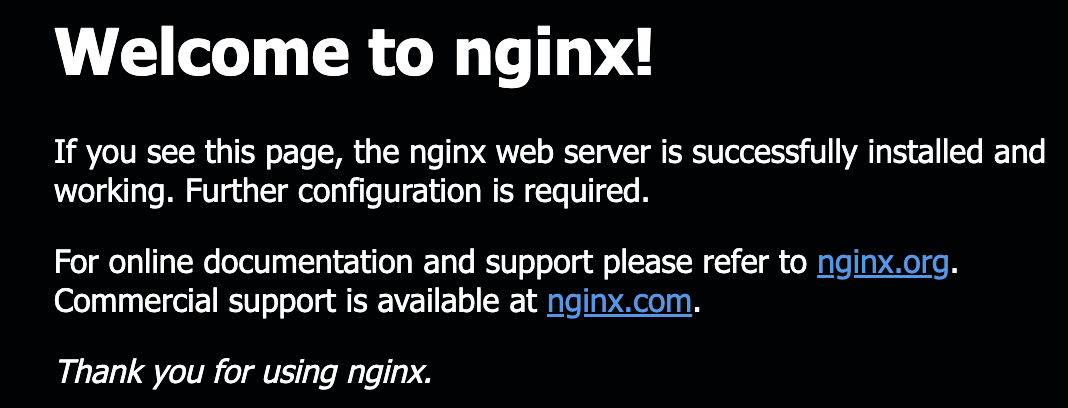
You should see the default NGINX welcome page.
Stopping and Removing the NGINX Container
1. Stop the NGINX Container
sudo docker stop my-nginx
2. Remove the NGINX Container
sudo docker rm my-nginx
Explanation:
docker stop my-nginx: Gracefully stops themy-nginxcontainer.docker rm my-nginx: Removes the stoppedmy-nginxcontainer.
3. Verify the Container is Removed
List all containers (including stopped ones):
sudo docker ps -a
my-nginx should no longer be listed.
Removing the NGINX Container Image
1. List Docker Images
Check the images present on your system:
sudo docker images
You should see the NGINX image listed.
2. Remove the NGINX Image
sudo docker rmi nginx
Explanation:
docker rmi nginx: Removes the NGINX image from your system.
3. Verify the Image is Removed
Check the list of Docker images again:
sudo docker images
The NGINX image should no longer appear in the list.
Summary of Commands
-
Run NGINX:
sudo docker run -d --name my-nginx -p 8080:80 nginx -
Check Running Containers:
sudo docker ps -
Stop the Container:
sudo docker stop my-nginx -
Remove the Container:
sudo docker rm my-nginx -
List Docker Images:
sudo docker images -
Remove the NGINX Image:
sudo docker rmi nginx
This guide covers the full lifecycle of deploying, verifying, stopping, and removing an NGINX Docker container and image. Stay tuned for more Docker articles as we expand on these skills! Next, we'll explore Docker Compose, a YAML-based (YAML Ain't Markup Language) tool for managing multi-container deployments, and Portainer, a user-friendly GUI for managing your Docker environment. 🚀